*/

Make 2026 the year you learn to love Excel. Elizabeth Bowden shares tips, tricks and time-savers in part four of her series
Welcome back to bite-sized top tips. This time, we’re focusing on Microsoft (MS) Excel. Excel is my favourite MS app. If you are not an Excel fan, make 2026 the year you learn to love Excel. Your life will be better. As ever, use a dummy document and get experimenting.
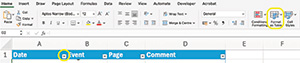
If you use Excel for nothing else, use it for chronologies. As you work, add events to your sheet row by row; do not worry about date order. Quickly create a sortable table via Home > Format as Table (pick the look you want). Or highlight the cells to add data filters to header cells: Data/Sort & Filter/Filter. Use the arrows to sort by date.
The other best use of Excel is for costs; having costs in Excel format in court will make your life exponentially easier. Set up Excel cost templates. As a minimum, have an N260 template so you can amend the hourly rates/time, etc., in real time.
Freeze pane in Excel makes chronologies easier to work with: View/Freeze Panes, then choose to freeze the top row, first column, or multiple rows/columns by selecting a cell and then applying ‘Freeze Panes,’. This will make the headers visible while you scroll.
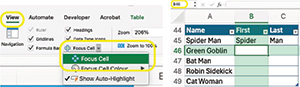
The focus cell highlights the cell you are in. Toggle the focus cell on/off via View > Focus cell. Also, if you get lost in your sheet, type in A1 top left and then press ‘enter’ to return to cell A1, it works for any cell reference.
The AutoSum function saves time (Home/ Σ AutoSum). AutoSum can do other auto-sums, e.g. average. At the bottom of the workbook, the average, count and sum of selected cells are automatically displayed. Press and hold ‘command’ to select non-adjacent cells.

Seeing #### just means the data is too big to display. You can either resize by dragging the column edge or use Home/Format/Auto-fit Column Width to resize all columns in one go (or, if resizing rows, select rows).
Stop the reference changing when you copy or drag the formula to other cells by using an absolute cell reference. If the formula is =SUM(B2*E12), and you want to retain the reference to B2 use the $ to lock it to the absolute cell =SUM($B$2*E12).
If you have data in one workbook across multiple sheets, seeing the other sheets simultaneously makes working with data so much easier. There is a magic button that does this: View/New Window lets you see and work on all the sheets at the same time.
You can use PDF apps to export as an Excel file – but from within Excel, you can directly insert from PDF or an image: Insert/From Picture/Picture from File (or clipboard if you copied it that way) and select the image/PDF with the data you want inserted.
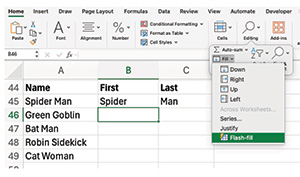
If data in a cell needs separating, use Flash-fill. For example, if names in Column A are ‘Jo Bloggs’, sorting only works by first name. To sort by surname, you need to split the data. Flash-fill will do this quickly. In one row, set out the data as you want it (to give Excel an example). Then use Flash-fill.
To find name duplications quickly, highlight the cells, then select Conditional Formatting/Highlight Cell Rules/Duplicate Values. Explore the other conditional formatting options that can help you with your case preparation, e.g. highlighting cells that contain specific text.
-(002).jpeg?sfvrsn=931a77b_2)
Welcome back to bite-sized top tips. This time, we’re focusing on Microsoft (MS) Excel. Excel is my favourite MS app. If you are not an Excel fan, make 2026 the year you learn to love Excel. Your life will be better. As ever, use a dummy document and get experimenting.
If you use Excel for nothing else, use it for chronologies. As you work, add events to your sheet row by row; do not worry about date order. Quickly create a sortable table via Home > Format as Table (pick the look you want). Or highlight the cells to add data filters to header cells: Data/Sort & Filter/Filter. Use the arrows to sort by date.
The other best use of Excel is for costs; having costs in Excel format in court will make your life exponentially easier. Set up Excel cost templates. As a minimum, have an N260 template so you can amend the hourly rates/time, etc., in real time.
Freeze pane in Excel makes chronologies easier to work with: View/Freeze Panes, then choose to freeze the top row, first column, or multiple rows/columns by selecting a cell and then applying ‘Freeze Panes,’. This will make the headers visible while you scroll.
The focus cell highlights the cell you are in. Toggle the focus cell on/off via View > Focus cell. Also, if you get lost in your sheet, type in A1 top left and then press ‘enter’ to return to cell A1, it works for any cell reference.
The AutoSum function saves time (Home/ Σ AutoSum). AutoSum can do other auto-sums, e.g. average. At the bottom of the workbook, the average, count and sum of selected cells are automatically displayed. Press and hold ‘command’ to select non-adjacent cells.
Seeing #### just means the data is too big to display. You can either resize by dragging the column edge or use Home/Format/Auto-fit Column Width to resize all columns in one go (or, if resizing rows, select rows).
Stop the reference changing when you copy or drag the formula to other cells by using an absolute cell reference. If the formula is =SUM(B2*E12), and you want to retain the reference to B2 use the $ to lock it to the absolute cell =SUM($B$2*E12).
If you have data in one workbook across multiple sheets, seeing the other sheets simultaneously makes working with data so much easier. There is a magic button that does this: View/New Window lets you see and work on all the sheets at the same time.
You can use PDF apps to export as an Excel file – but from within Excel, you can directly insert from PDF or an image: Insert/From Picture/Picture from File (or clipboard if you copied it that way) and select the image/PDF with the data you want inserted.
If data in a cell needs separating, use Flash-fill. For example, if names in Column A are ‘Jo Bloggs’, sorting only works by first name. To sort by surname, you need to split the data. Flash-fill will do this quickly. In one row, set out the data as you want it (to give Excel an example). Then use Flash-fill.
To find name duplications quickly, highlight the cells, then select Conditional Formatting/Highlight Cell Rules/Duplicate Values. Explore the other conditional formatting options that can help you with your case preparation, e.g. highlighting cells that contain specific text.
Make 2026 the year you learn to love Excel. Elizabeth Bowden shares tips, tricks and time-savers in part four of her series


Far-ranging month for the Chair of the Bar
Endometriosis Awareness North, a charity raising awareness of endometriosis and supporting those affected across the North of England, has received a £500 boost from AlphaBiolabs via the company’s Giving Back initiative
Marie Law, Director of Toxicology at AlphaBiolabs, examines the most recent data on alcohol misuse in the UK, and the implications for alcohol testing in family proceedings
Clement Cowley, Partner at The Penny Group, explains how tailored financial planning can help barristers take control of their finances and plan with confidence
Marie Law, Director of Toxicology at AlphaBiolabs
A £500 donation from AlphaBiolabs has been made to the leading UK charity tackling international parental child abduction and the movement of children across international borders
Seeing the full picture – Baljit Ubhey OBE outlines the CPS action plan to tackle violence against women and girls, offering insights directly relevant to courtroom practice
Heritage as an anchor and a compass, finding our common humanity and embracing the power of the outsider – Melina Antoniadis’s lessons learnt
Is the Judicial Conduct Investigations Office process fit for purpose? Women barristers’ experiences of bullying are not being reported or, if they are, they are not making it through the system, says Tana Adkin KC
Review by Daniel Barnett
Chair of the Bar reports back